

Skip First Level Navigation | Skip All Navigation
|
Agencies | Online Services | Web Policies | Help |
|
| OIT Home | Contact Us |
|
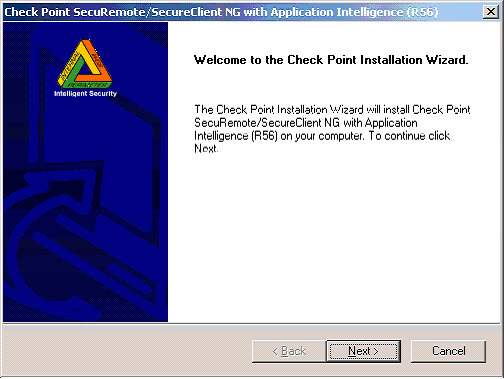
Home > Services > Firewall > Instructions for Installing SecuRemote (R56) Client (Windows 2000 and XP) Instructions for Installing SecuRemote (R56) Client (Windows 2000 and XP)Please note: If you are running SecuRemote R54, it must first be uninstalled prior to installing R56. Download the Client Software. You may get the software from either of the following URL's: ftp://inet.state.me.us/public/securemote/SecuRemoteR56.exe or http://www.checkpoint.com/techsupport/downloads_sr.html (look for "NG with Application Intelligence R56" then select the "Customers Auto-Installation Extended View" from the listed available downloads. Start the installation process. You will see the Welcome Window. Click Next. Example:
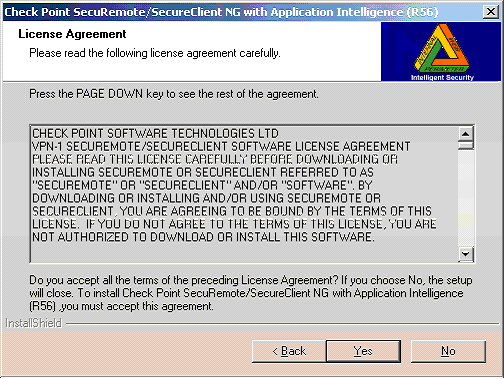
The Software License Agreement Window will appear. Click Yes. Example:
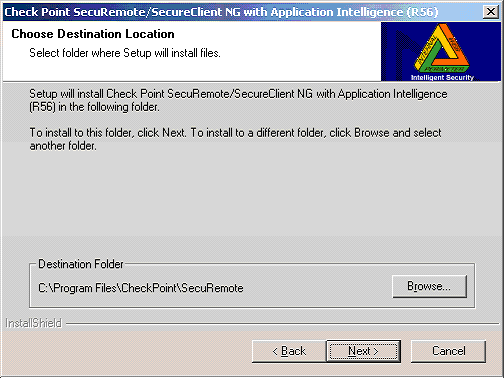
The Choose Destination Location Window will appear. Accept the default location. Click Next. Example:
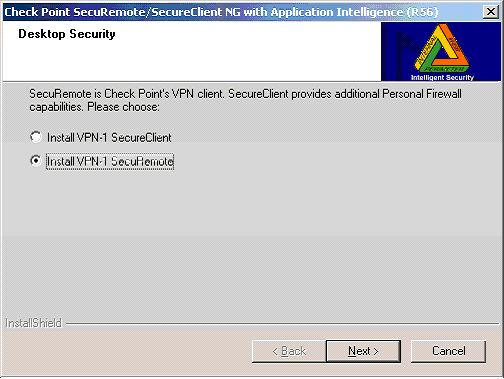
The Desktop Security window will now appear. Make sure that the radio button next to "Install VPN-1 SecuRemote" is checked and click Next. Example:
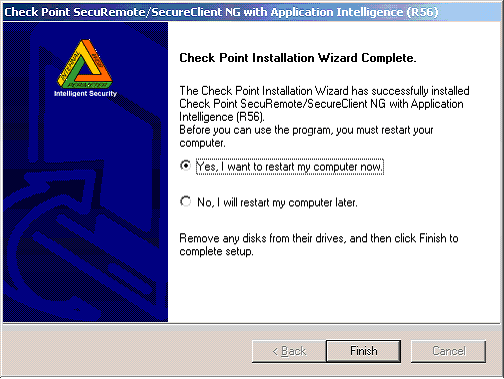
The Set up Complete window will now appear. Make sure that the radio button next to "Yes, I want to restart my computer now" is checked and click Finish.
Example:
Your computer should shut down and restart. Right-click on the yellow key in the bottom right of the system tray
by the time clock. You'll get the following screen. Select Yes
to define a new site.
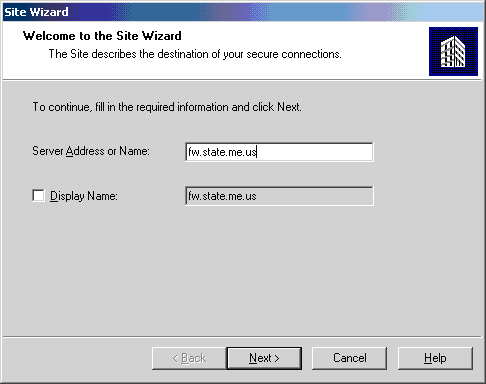
Type fw.state.me.us for the server address or Name, then click Next.
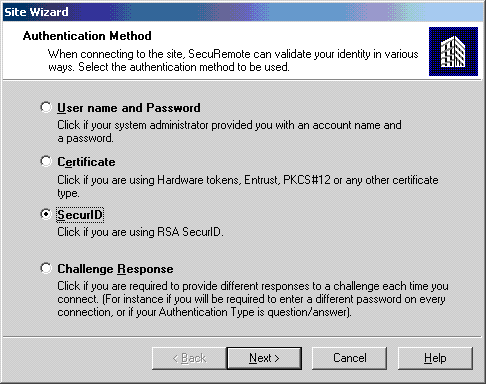
Select the third option (SecurID), click Next.
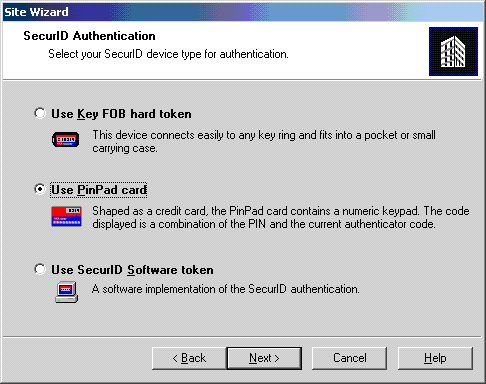
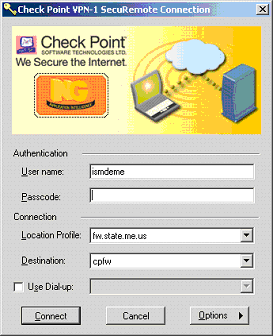
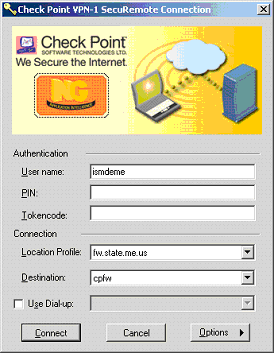
Select the second option (Use PIN card). The difference between the FOB logon screen and the Pin Pad logon screen is that on the FOB logon screen, the PIN and passcode are broken up into two separate lines, and the PinPad is all on one line. The PinPad option will work just fine for an FOB card.
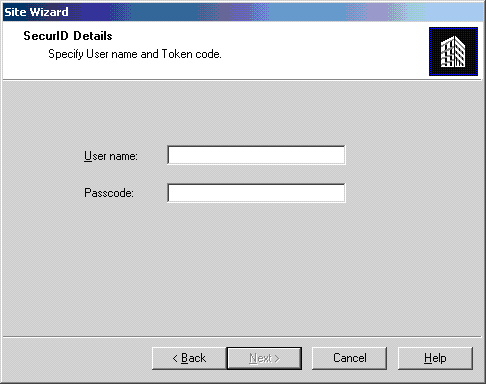
Enter the UserID and 10 digit passcode. Click Next.
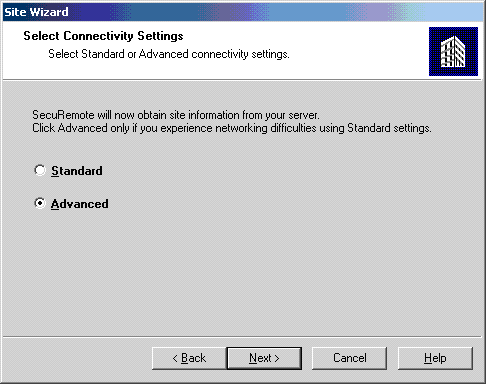
Select "Advanced", click Next.
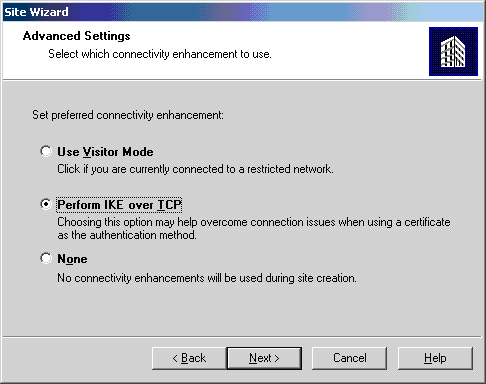
Select "Perform IKE over TCP", click Next.
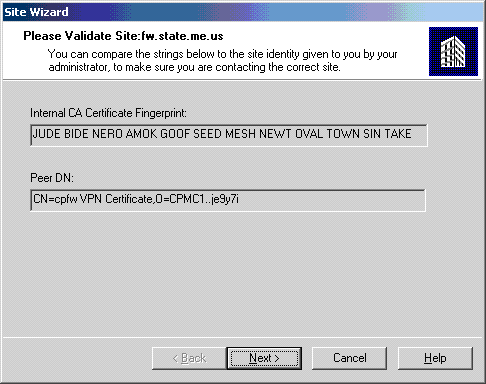
Click Next on the validate screen
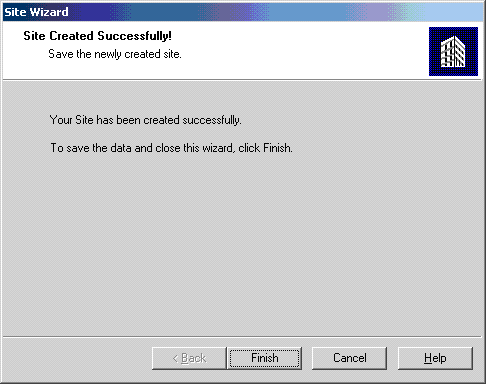
Click Finish on the "Site Created Successfully" screen.
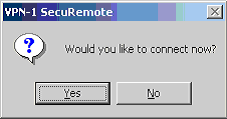
Click Yes at the next screen.
The logon screen appears. Click on the "Options" button on thebottom right of the screen and select "Settings"
The Check Point VPN-1 SecuRemote Settings window will appear. Click on the Properties Button on the right.
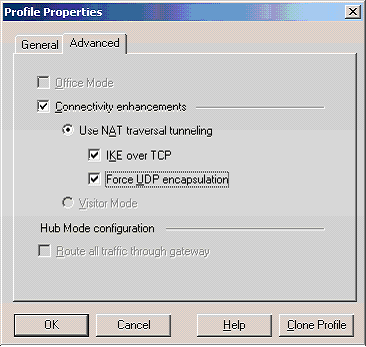
The Profile Properties window will be displayed. Click on the Advanced tab. Check the "Connectivity enhancements" box, the "IKE over TCP" box and the "Force UDP encapsulation" box. Click OK. (example below)
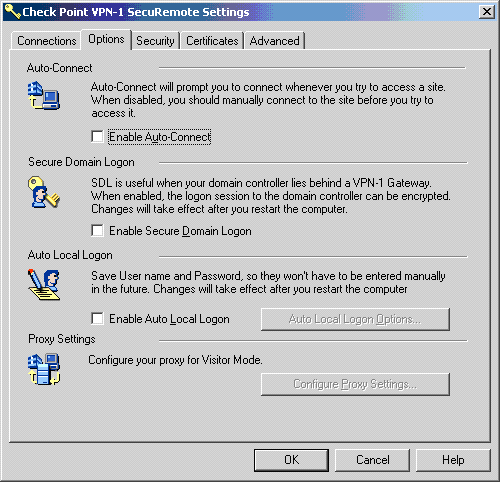
Click on the "Options" tab and un-check the Enable Auto-connect box, click OK.
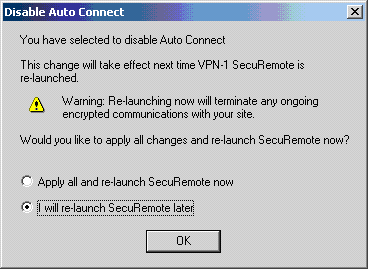
Select the second option ("I will re-launch SecuRemote later) and click OK.
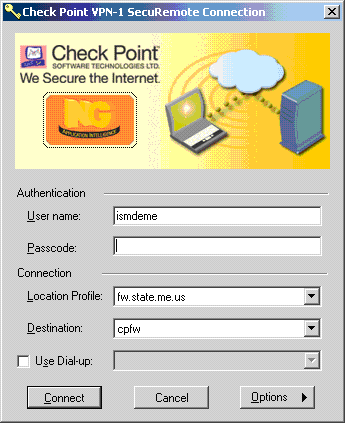
You are now at the Connection box. Enter the passcode information and click "Connect"
PinPad logon screen:
FOB logon screen:
|
| Copyright © 2005 All rights reserved. |